Prerequisite: Google Chrome or Microsoft Edge
Petrosight Connect requires either Google Chrome or Microsoft Edge. If neither browser is installed, download and install one of the following:
Google Chrome: https://www.google.com/intl/en/chrome/browser/
Microsoft Edge: https://www.microsoft.com/en-us/edge
Once the installation is complete, continue to the next section to install Petrosight Connect Client.
Install Petrosight Connect Client
Launch your browser
Launch Microsoft Edge or Google Chrome either from the icons on your desktop, start menu, or start bar. If you do not have either browser please check the pre-requisite section above for information on how to install it before continuing.
Note: Upon launch these browsers might ask you to sign in or create an account. This step is entirely optional and not necessary, Petrosight does not require you to have a Google account in order to use our services. Clicking the "Skip for now" link is an excellent way to continue should you not have an account or not want to sign up.
Login to Petrosight
In your browser’s address bar enter https://app.petrosight.ca and proceed to sign in to your Petrosight account as normal.
Launch Petrosight Help Page
Once logged in, from the profile menu in the top right click Get Help or go directly to https://app.petrosight.ca/help.
Add Petrosight Connect Extension
Click "Available in Chrome Web Store" to go to the Google Chrome Extension page to install. Alternatively go directly there https://chrome.google.com/webstore/detail/petrosight-connect/lolcplccnclgebpfkkepjckeljcnjjdb.
Note: This extension can be installed in Google Chrome or Microsoft Edge. Neither browser require an account with Google to install.
Petrosight Connect is Installed!
Proceed to the Using Petrosight Connect for information on how to use the extension.
Using Petrosight Connect
The Petrosight Connect extension works by editing data loaded directly from the reports in the web application. In order to use the client you first have to retrieve the report you wish to work on then using the Petrosight Connect extension within your browser you can edit the report data offline. Once you're done with your changes and are ready to commit the changes back to Petrosight and you've returned online to the report page you are able to sync the changed information directly to the report.
Load Report Data
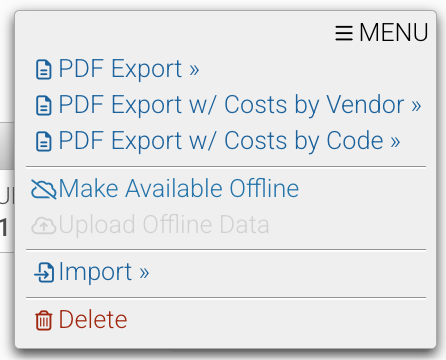
From the MENU of applicable reports select "Make Available Offline" to load data into the Petrosight Connect extension.
Launch the Petrosight Connect extension
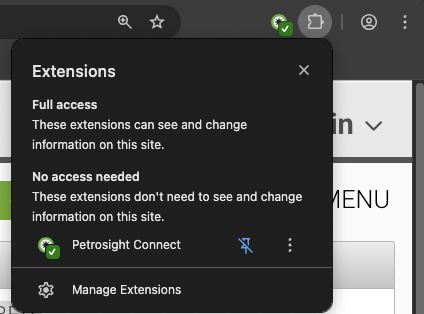
From your browser's address or extension bar launch the Petrosight Connect extension. The extension may be in a sub menu that you need to expand to see. Clicking the PIN beside the extension entry in the list will make it always visible on your bar.
Select Report
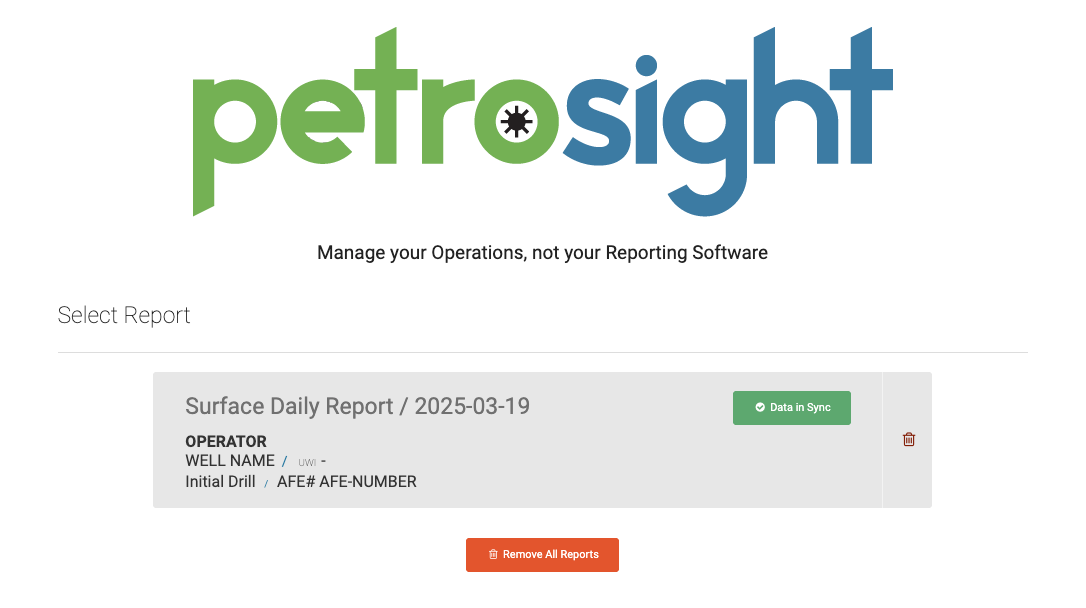
The available reports will be shown in a list with their current status displayed and any detailed information that may make selecting the report helpful.
Edit Report Data & Save Changes
After selecting the appropriate report make the necessary changes and click
Save Reportin the top corner. Once done you can close this window.Upload Report Data
Return to the report page on https://app.petrosight.ca that you loaded data from into the extension. The page will display a status label of
Offline Data ready for uploadwhen changes are detected and ready for importing. SelectUpload Offline Datafrom the top right menu to initiate the upload process.Changes, additions, and deletions are calculated in real time in order to maintain data accuracy and consistency. Data is merged not replaced.
Though a report file can be edited and uploaded several times it is Petrosight's recommendation to only utilize the Petrosight Connect extension when reliable internet service is not available. Further, always check your data after the import to ensure it is correct. Review the report to ensure data is correct and preform any final tasks.
Was this article helpful?
That’s Great!
Thank you for your feedback
Sorry! We couldn't be helpful
Thank you for your feedback
Feedback sent
We appreciate your effort and will try to fix the article