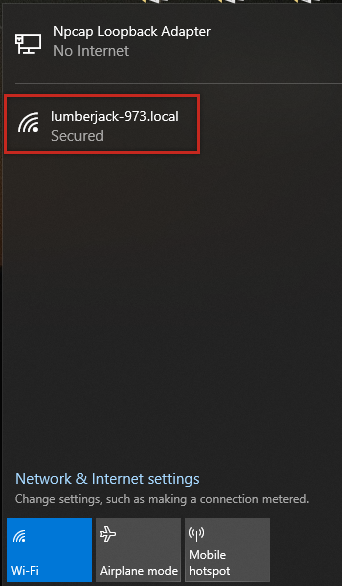
With Lumberjack powered up, on a personal computer, enable Wi-Fi and check for the available connection “lumberjack-xxx”. If it is not available, try moving closer to Lumberjack. Once in the Wi-Fi list, click “Connect”. The password will be plowtech. (This is not an Internet connection.)
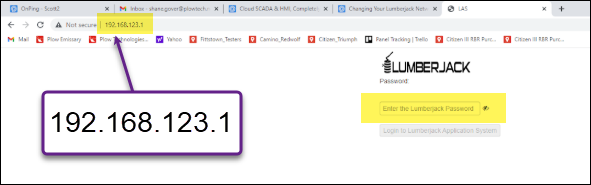
Open an internet browser, then in the command line type 192.168.123.1 and hit enter. When the password page loads, enter admin as the password.
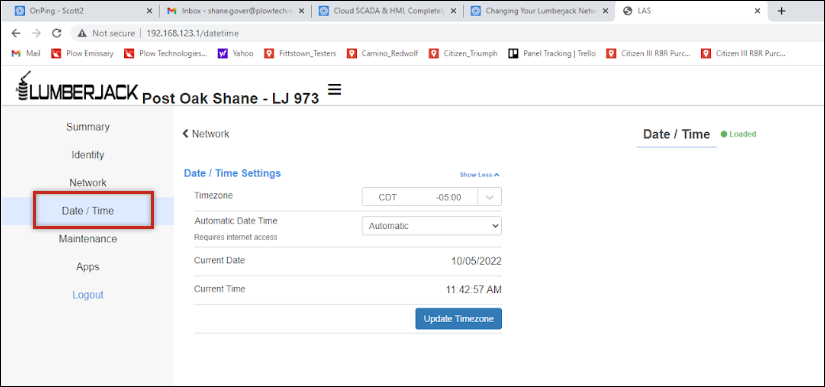
If changing the Time Zone, click “Date/Time” on the left side and adjust it for the zone where the LumberJack will be used. Click “Update Timezone”.
Click “Network ” on left to edit IP settings.
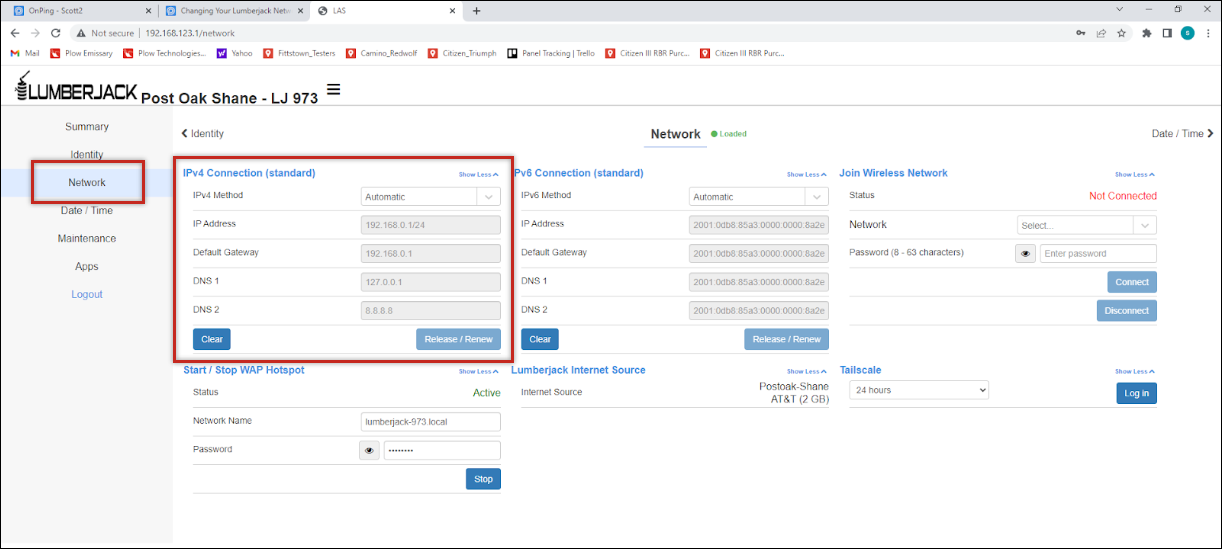
Under “IPv4 Connection”, In “IPv4 Method” drop down box select “Manual”. In “IP Address” type the static address you want the Lumberjack to be, followed by /24, this is the subnet mask 255.255.255.0. In “Gateway” type the address of the IP that is your internet access point or the IP of the supplied ethernet switch which was set earlier in previous chapter. Once complete press “Release/Renew” and reload page, if settings did not take affect the LumberJack will go back to default configuration.
Once complete exit out of LumberJack, Setup is complete.
Was this article helpful?
That’s Great!
Thank you for your feedback
Sorry! We couldn't be helpful
Thank you for your feedback
Feedback sent
We appreciate your effort and will try to fix the article