Transportation Portal and search for the driver under Setup > Driver/Contractor.
- In the portal, to go Setup>Driver and locate the affected driver.
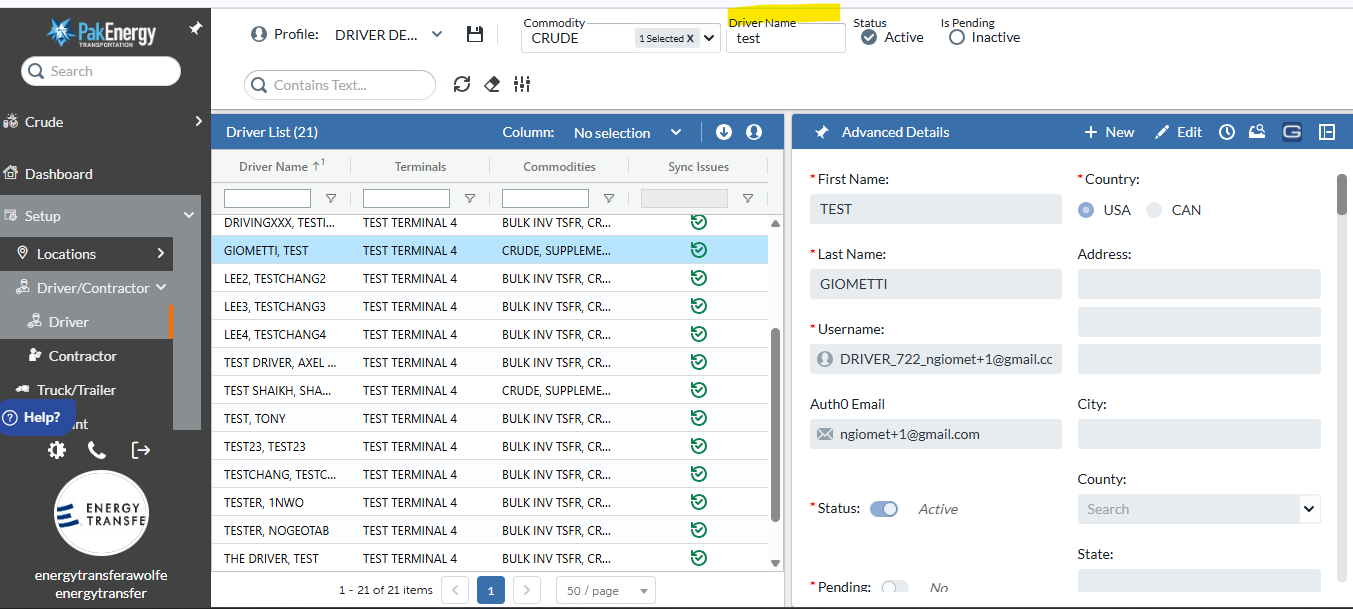
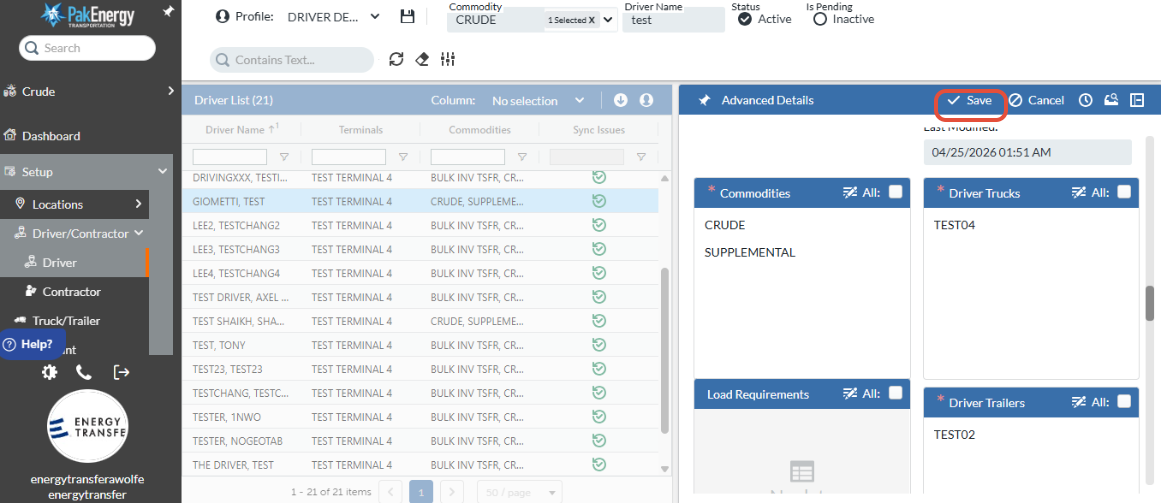
- Click edit and scroll down to Driver Trucks/ Driver Trailers list to view allotted vehicles.
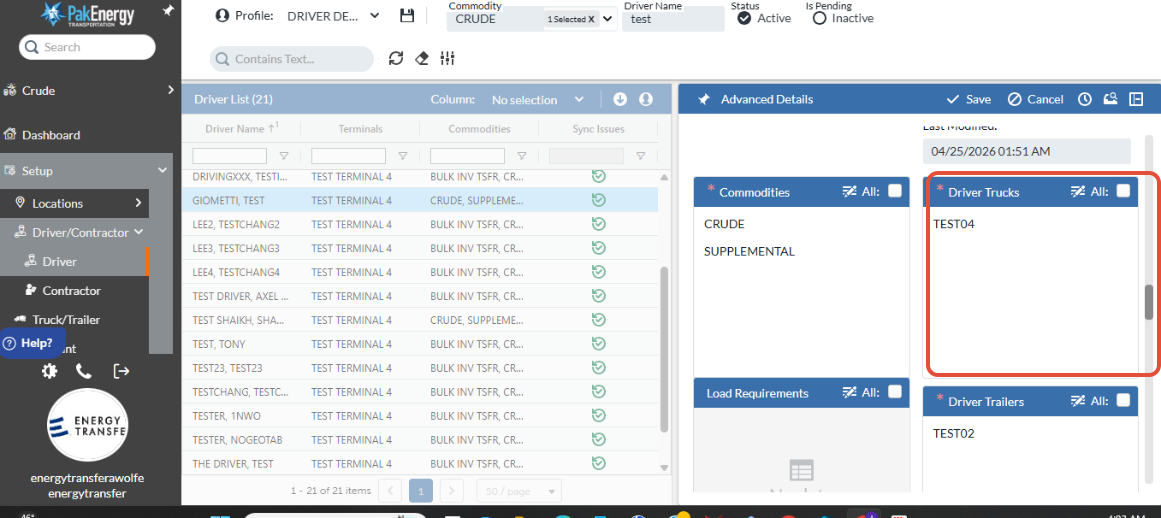
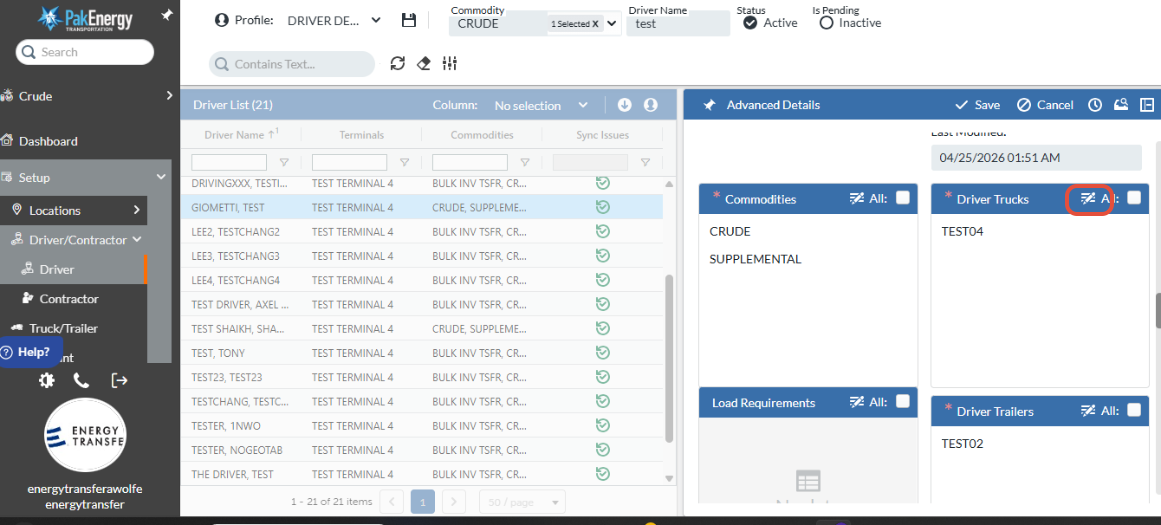
- If the truck/trailer is not listed, click on the pencil icon to expand and edit list.
- Search for the correct Truck or Trailer, then use the Right Arrow to move it to the Selected list. Click Done. If you do not see the Truck/Trailer within this list, proceed to step 3.
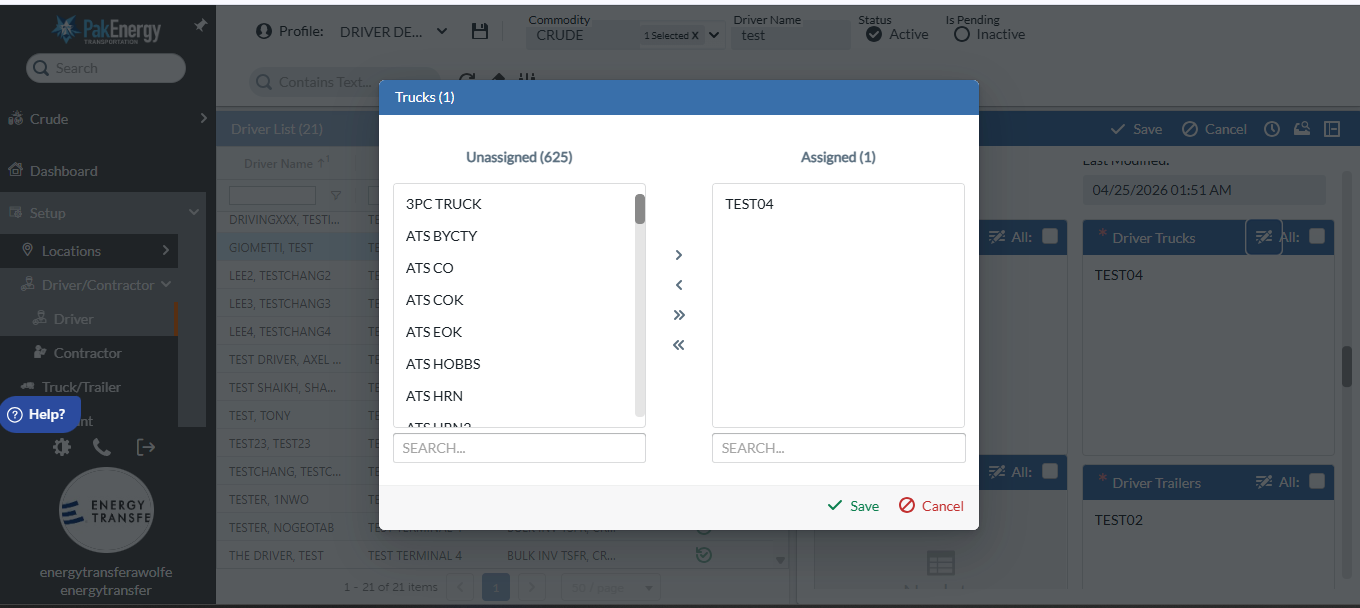
- Click Save at the bottom of pop up window, then save at top of profile..
- On the tablet, Ask the driver to select the option "Refresh Truck/Trailer List" from the list of available Trucks/Trailers. The Truck/Trailer will populate and allow them to select it.
- If the Truck/Trailer was not on this list, go to Setup > Truck/Trailer and search for the Truck/Trailer #. Ensure that Truck/Trailer isn't Inactive. If it is not listed, dispatch will need to build it for the driver.
- If the Truck/Trailer IS on this list, the driver just didn't see it onthe drop down menu. Ask them to look again on the tablet.
Was this article helpful?
That’s Great!
Thank you for your feedback
Sorry! We couldn't be helpful
Thank you for your feedback
Feedback sent
We appreciate your effort and will try to fix the article